.png&w=384&q=75&dpl=dpl_2nTgytinGW4DvsAx1xZZMyKLgWRM)
Multi-location hiring is a daily reality for any company with many stores, restaurants or operating sites: the same role, open all the time, in many places at once. The new Selenios Multi-location posting lets you publish one job ad for all your locations, while each location manager sees only the candidates who live near theirs. It is the simplest way to run continuous searches without multiplying ads, forms and pipelines.
Key Takeaway
One ad, one form, one AI interview and one pipeline. Locations are filtered views of that same pipeline, based on how close each candidate lives.
Why is it so hard to hire the same role across many locations?
Retail, food service, cinemas, pharmacies and logistics share a pattern: they hire sales associates, cashiers, stockers or warehouse staff continuously, across dozens of sites. These are what the market calls evergreen roles, and they rarely fit a workflow designed for one opening at a time.
The usual workaround is one job per store. The outcome looks the same everywhere:
- Duplicate ads: the same role is posted ten, twenty or fifty times, each with its own form.
- Split candidates: someone applies to three stores and shows up in three separate pipelines.
- Repeated work: recruiters review, screen and interview the same profile more than once.
- Double-hiring risk: two managers advance the same person without knowing it.
Key Takeaway
The problem is not candidate volume, it is fragmentation. When each store has its own ad, you lose the big picture and duplicate the effort.
What is the Selenios Multi-location posting?
It is a single posting whose locations work as filtered views of one pipeline. You get one form, one AI interview, one set of requirements and one pipeline, and each location sees the candidates who live near it.
Here is how operations change compared with one job per store:
| One job per store | Multi-location posting | |
|---|---|---|
| Job ads | One per location | One for all of them |
| Form and AI interview | Repeated in every ad | One, shared |
| Pipeline | One per store, candidates split | One, filtered by location |
| Candidate who lives near two stores | Shows up twice | Appears in both until one advances them |
| Double hiring across stores | Possible | Once hired, removed from every location view |
| Big picture | Added up by hand | Posting totals plus a per-location breakdown |
How do you set up a multi-location continuous search?
Setup happens inside the position creation flow you already use, and it works with AI pre-generation.
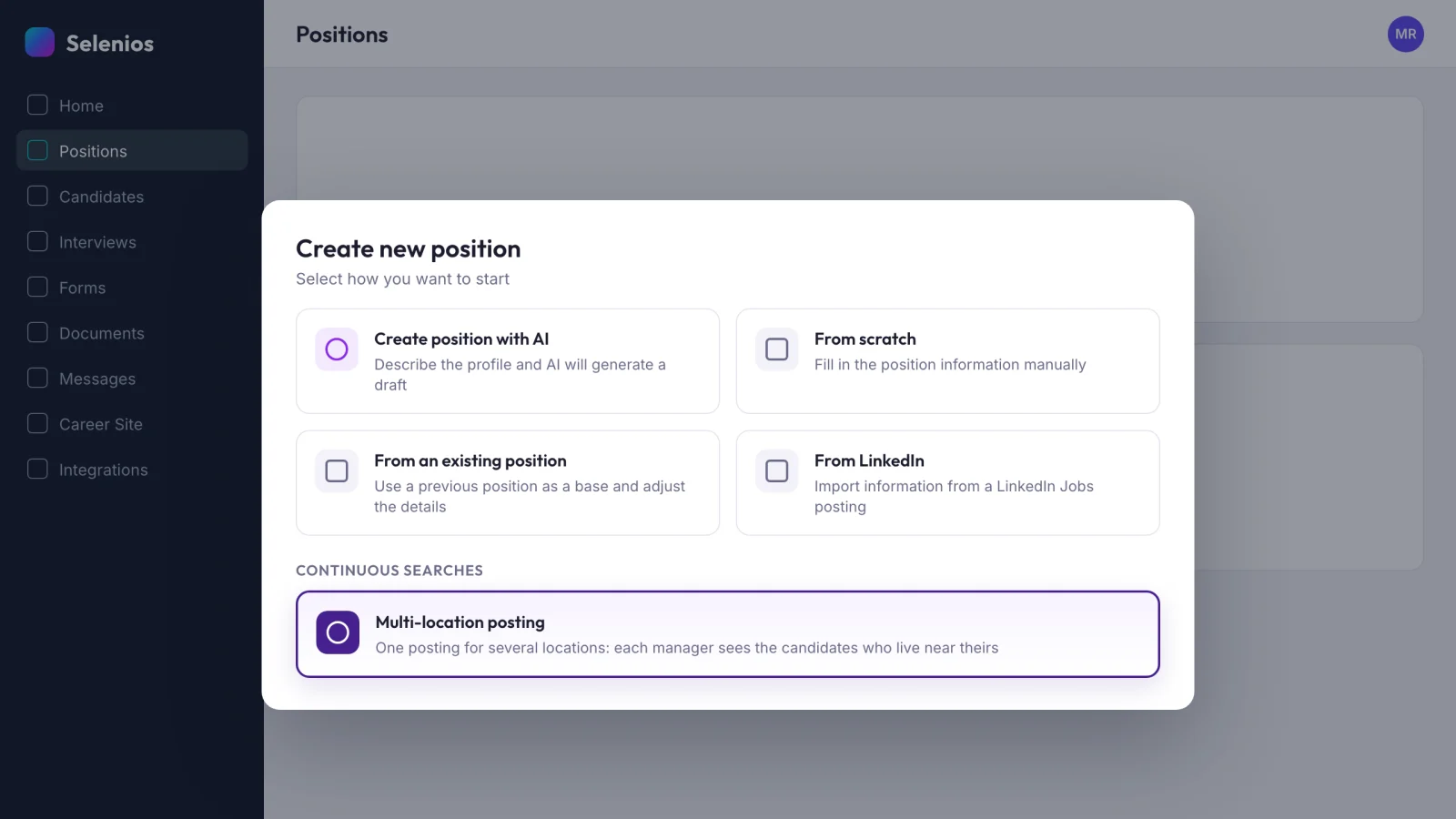
1. Choose the card in Create new position
In Create new position, under Continuous searches, select Multi-location posting. The card description sums it up: "One posting for several locations: each manager sees the candidates who live near theirs."
2. Add locations from the catalog
Pick locations from your company's catalog, up to 50 per posting. Each one sees the same pipeline, filtered by the candidates who live nearby.
3. Set the maximum distance from home
Enter the radius in kilometers, between 1 and 200. The default is 10 km. The radius applies to every location in the posting.
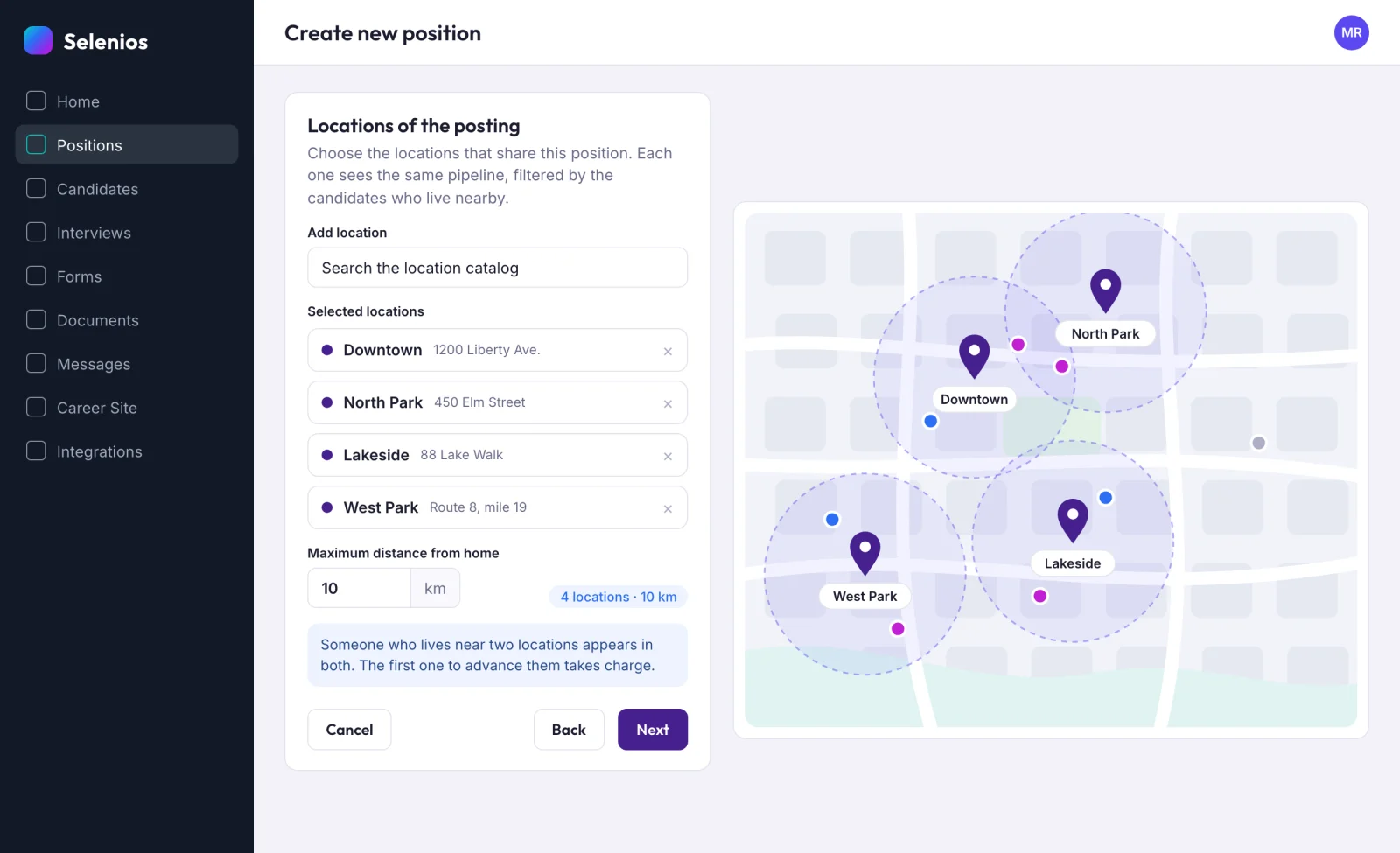
4. Review the summary and create the posting
Before you create it, the summary spells out how it will behave, for example: "One posting for 4 locations. Each candidate appears in the ones within 10 km of their home, and the first one to advance them takes charge." In the positions list, the posting carries a Multiple locations badge with its number of locations and radius.
Key Takeaway
Setting up a continuous search takes the same steps as creating a position, plus two decisions: which locations take part, and how far from home candidates can live.
How is each candidate routed to the right location?
A stage agent assigns every candidate to all the locations within the radius of their home. From there, the rules are simple:
- Exactly one location in range: that location takes charge automatically.
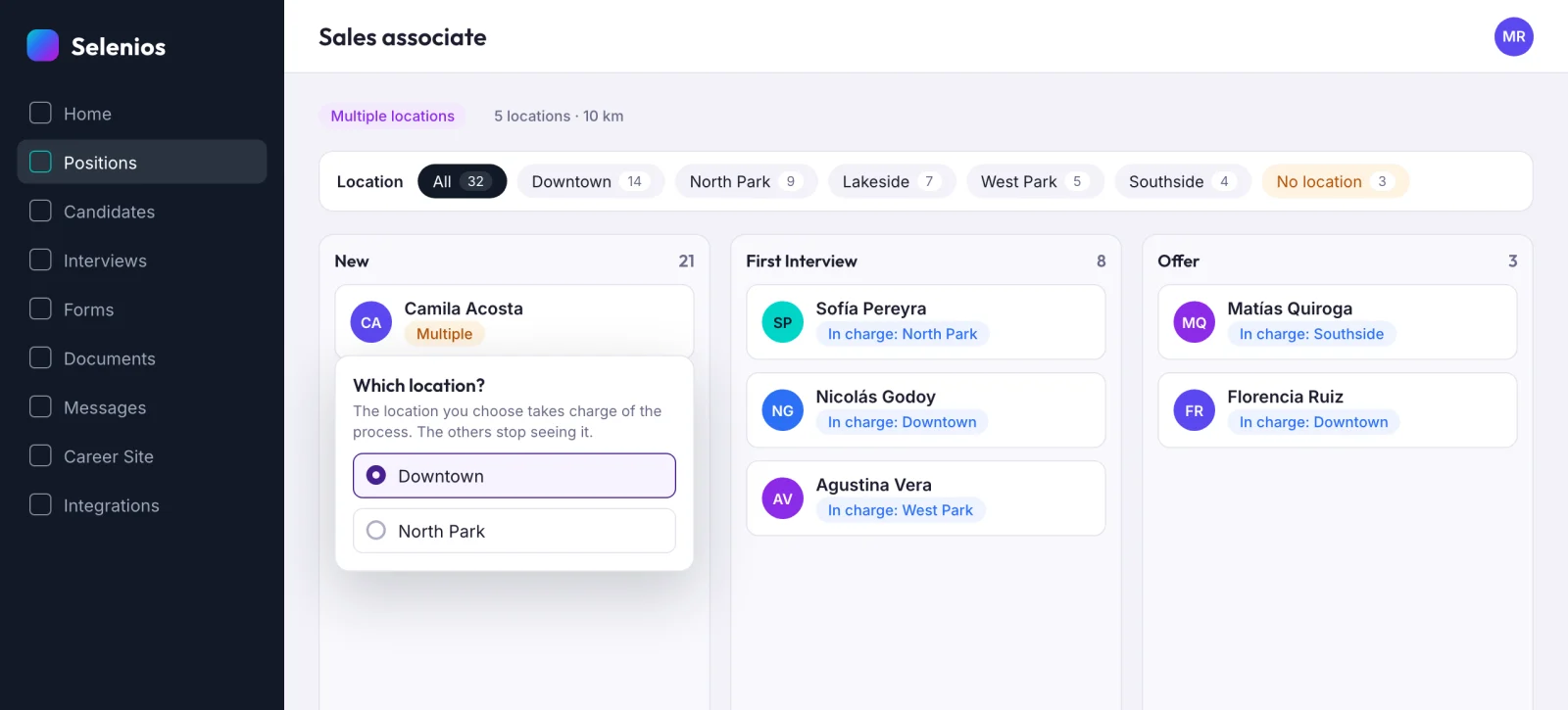
- Several locations in range: the candidate shows in all of them until one advances them. The first manual move gives that location ownership, and the others see a read-only note: "This candidate is in process with another location."
- No location in range: the candidate goes to the No location queue.
The agent runs again over time, so a location you add later reaches the candidates already waiting within its radius.
When a recruiter needs to step in, the pipeline offers three actions: Which location? when advancing someone who appears in several, Change location, and Release location, which removes ownership and makes the candidate available again to every nearby location.
Key Takeaway
Nobody routes candidates to stores by hand: distance from home decides where each candidate appears, and the first location to advance them takes charge.
What does each location manager see?
Hiring managers assigned to a location only see the candidates of their locations. They cannot move candidates between stages, so the recruiting team stays in control of the process while each manager follows the people who could work at their site.
Final decisions apply to the whole posting:
- Rejecting a candidate discards them from the entire posting, not just one location.
- Hiring a candidate removes them from every location view, so no other store keeps considering them.
There is a business reason to favor proximity: someone who lives close to work has less friction getting there every day. That tends to mean more stable teams, which is exactly what you want in roles you hire for all year.
How do you measure a continuous search?
Stats show the posting totals and a breakdown by location in charge, so you can see which stores are receiving and advancing candidates. The No location in charge filter shows who still has no owner. Each hiring manager's insights are scoped to their locations.
To go deeper on reading your funnel, see our guide to recruitment funnel analytics. To add volume to a continuous search, combine it with job board multiposting and recruiting through WhatsApp.
Key Takeaway
One posting gives you the numbers for the whole process and the per-location detail at the same time. No more consolidating reports from dozens of openings.
How do you turn on continuous searches?
It is enabled per company: ask your Selenios contact or book a demo. Once enabled, the Multi-location posting card appears in Create new position, under Continuous searches.
Frequently asked questions
What is a multi-location posting in Selenios?+
It is a single job ad with one application form, one AI interview, one set of requirements and one pipeline, shared by several locations. Each location sees that pipeline filtered to the candidates who live near it.
How many locations can one continuous search include?+
Up to 50 locations per posting, chosen from your company's location catalog. The radius is set in kilometers, between 1 and 200, and defaults to 10 km.
What happens when a candidate lives near two locations?+
They appear in both until one of them advances them. The first location to move them to another stage takes charge, and the others see a read-only note saying the candidate is in process with another location.
What happens to candidates who have no location nearby?+
They go to the No location queue so the recruiting team can decide what to do with them. If you add a location later, the agent runs again and the new location sees the waiting candidates who live within the radius.
Do location managers see every candidate?+
No. Hiring managers assigned to a location only see the candidates of their locations, and they cannot move candidates between stages. Their insights are also scoped to those locations.