.png&w=384&q=75&dpl=dpl_9AzUnbPVw81xcaj7knVWEKQJH1Gd)
A job requisition approval workflow is how a company decides that a new role should be opened, and in most teams it still runs on chat messages, forwarded emails and shared spreadsheets. In Selenios, any employee requests a new position from the Internal Portal, the approval chain moves in the order the requester defined, and HR receives structured information it can turn into a ready position with AI in minutes.
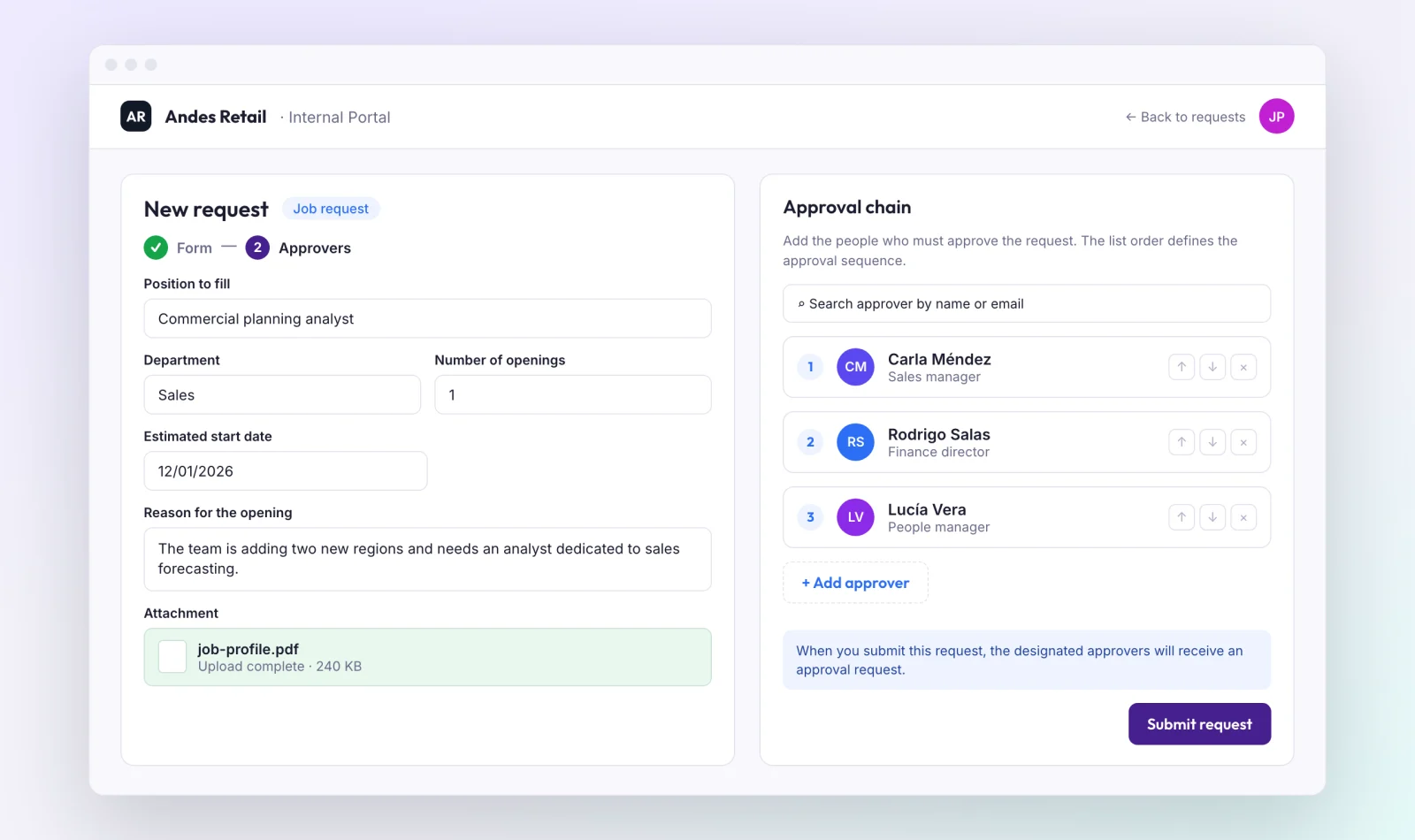
Why do job requisitions get lost in chat, email and spreadsheets?
Without a formal process, every department asks for headcount its own way. A sales manager messages HR, finance approves in a separate email thread, and nobody knows for sure whether the search is authorized. The search starts late, and no one can say why.
The information also arrives incomplete. HR has to ask again for the department, the start date or the reason for the opening, then copy everything by hand to write the job posting.
Key Takeaway
A job requisition without a formal workflow creates three problems: no record of who approved it, incomplete information, and HR starting every search from scratch.
How does the job requisition approval workflow work in Selenios?
The module lives in your company's Internal Portal. On the portal home, a configurable banner invites employees in with a "Go to requests" button.
Access requires no user accounts or passwords: the employee enters their company email and receives a magic link. You do not need to set up an org chart before you start.
1. The employee fills in the form
From "New request", the employee picks the form and completes it. Your HR team builds that form in the Forms builder with the fields your company needs, and it accepts file attachments up to 10 MB, such as a job profile in PDF.
2. The requester builds the approval chain
If the form is set to require approval, the requester decides who approves and in what order. There are two modes:
- Free: the requester types each approver's details. Approvers must have an email address on a company domain.
- List: the requester picks from the approvers enabled for that form.
The chain needs at least one approver and has no maximum. Nobody can approve their own request or appear twice in the same chain.
3. Approvers decide in order, from their inbox
Each approver gets an email when it is their turn, with a magic link to approve or reject without logging in. After 2 days without action, Selenios sends a reminder. A single rejection ends the chain, and the requester gets an email at each step.
4. HR accepts or rejects
When the chain is complete, or right away if the form does not require approval, the request reaches HR. Admins get an email and a task in their Selenios dashboard that resolves itself once someone records the decision.
HR chooses Accept or Reject, with an optional comment, and the requester receives the decision by email.
Key Takeaway
Approvals follow the order the requester sets, each approver decides from their email without logging in, and HR has the final say with Accept or Reject.
How does HR turn a request into a position?
In Selenios, the "Requests" section under Positions lists every job request with its requester, form, creation date, status and approval progress. You can filter by status and by form, then open each request to see the answers, the approval chain and the full history.
From the details, "Create position from this request" opens the AI position creation wizard with the form answers already filled in and marked as suggested by AI. You review, adjust what you need, and the position is ready. Publishing follows your usual flow.
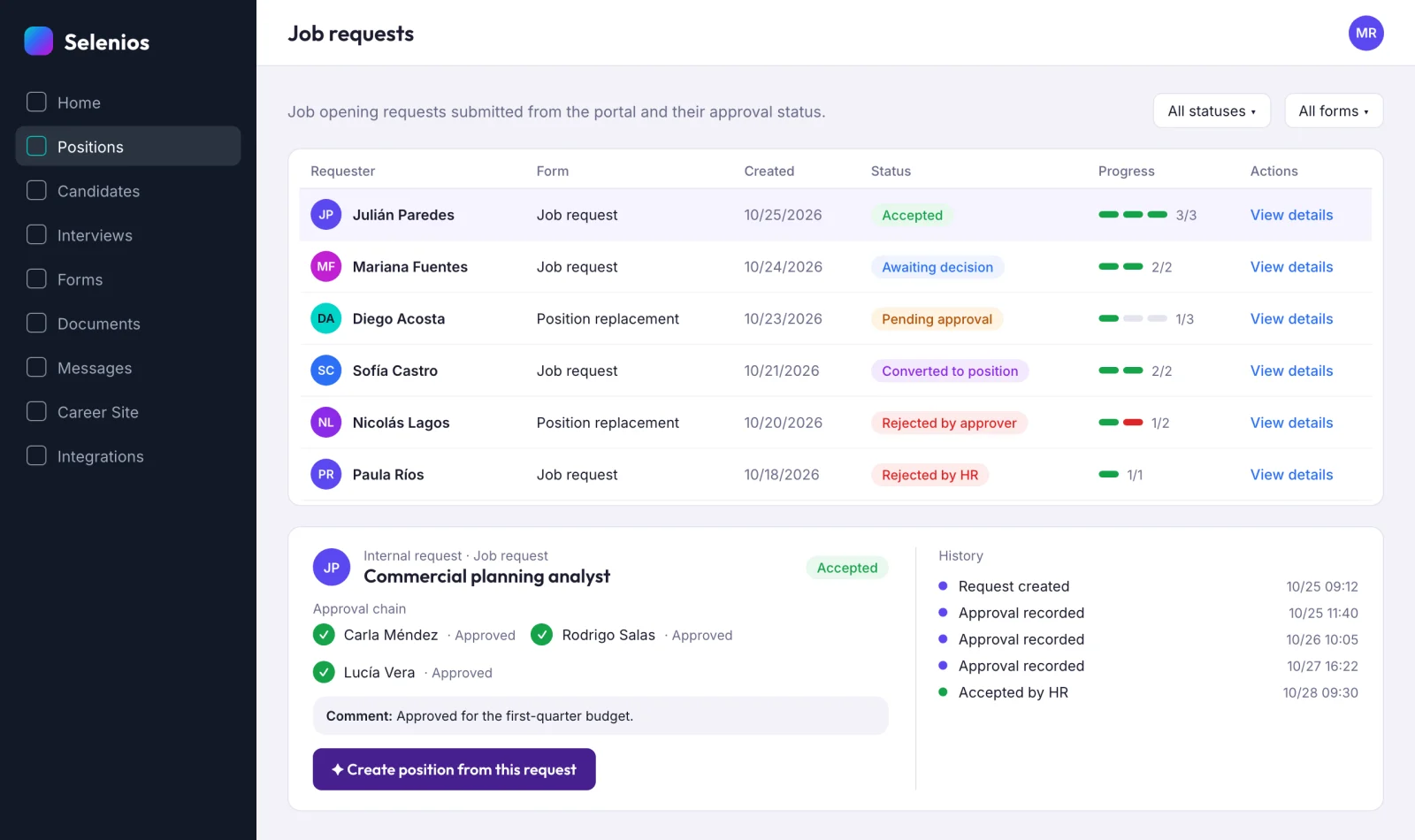
When you finish, the request changes to "Converted to position" and links straight to the new position. For more on how AI helps write the posting, read how to write job descriptions with generative AI.
Key Takeaway
HR never retypes what the department already wrote: the approved request feeds the AI wizard, and the position is ready in minutes.
What statuses can a job request have?
Every request shows where it stands at all times. In the HR dashboard, the statuses are:
| Status | What it means |
|---|---|
| Pending approval | The approval chain is in progress |
| Awaiting decision | Everyone approved, or the form does not require approval, and HR needs to decide |
| Rejected by approver | An approver rejected it and the chain ended |
| Cancelled | The requester cancelled it while it was pending approval |
| Accepted | HR accepted it |
| Rejected by HR | HR rejected it |
| Converted to position | A position has been created from the request |
The requester follows the same journey from the Internal Portal, with labels written for them, such as "Under Human Resources review" or "Converted to position".
What changes compared with requesting roles over chat or spreadsheets?
| Chat, email or spreadsheet | With Selenios | |
|---|---|---|
| Who can request | Whoever knows someone in HR | Any employee, from the Internal Portal |
| Information | Incomplete, scattered across messages | Structured in your company's form |
| Approvals | Separate threads, no record | In order, with a history of every step |
| Tracking | Asking around | Visible status and email updates |
| Request to position | Copy and paste everything | The AI wizard starts from the answers |
Traceability also helps you measure. In the Selenios custom dashboard, you can define time to fill as starting when the request is approved. If you are building your metrics, see our guide to hiring quality KPIs and how to find where candidates drop in your recruitment funnel.
Key Takeaway
With a single workflow, every position has a clear origin: who requested it, who approved it and when the search started.
Is it only for job requests?
No. The same module handles other internal requests, such as vacations, permits or equipment, under "Internal requests". Each form defines whether it requires approval and who can approve, so HR runs every internal request with the same logic.
How to get started
It is enabled per company: ask your Selenios contact or book a demo. Once it is on, your team creates the request form, decides whether it requires approval and customizes the Internal Portal banner.
Frequently asked questions
Who can submit a job request in Selenios?+
Any employee of the company, from the Internal Portal. They sign in with their company email and a magic link, with no account to create and no password to remember, and you do not need to load an org chart first.
How does the job requisition approval workflow work?+
If the form requires approval, the requester picks the approvers and sets their order. Each approver gets an email on their turn with a link to approve or reject without logging in. A single rejection ends the chain, and when everyone approves, the request reaches HR.
What happens if an approver does not respond?+
Selenios sends them an email reminder after 2 days without action on their turn. While the request is pending approval, the requester can also cancel it.
How does an approved request become a position?+
From the request details, "Create position from this request" opens the AI position creation wizard with the form answers already filled in and marked as suggested by AI. When you finish, the request shows "Converted to position" and links to the new position.
Are notifications sent through Slack or Teams?+
No. Job request notifications go out by email, and HR also gets a task in their dashboard for each request, which resolves itself once HR records a decision.