.png&w=384&q=75&dpl=dpl_HFHJwKg4HpZrRaxVpQpaLJz2SYZ8)
A custom recruiting dashboard in Selenios lets you build the exact view your leadership wants without waiting on an analyst. Open the Custom dashboard, type "hires per month by area" to Seleni, and the chart shows up in the preview, with data computed by Selenios. It matters because every company measures hiring differently, and a dashboard that ignores your definitions ends up replaced by a spreadsheet.
Why isn't a standard recruiting dashboard enough?
A standard dashboard answers everyone's questions except yours. The CEO wants hires by area, finance wants time to fill counted from request approval, and every hiring leader wants to see only their own positions. So someone exports to Excel every Monday and rebuilds the same charts by hand.
The real issue is not the charts. It is the definitions. If your company counts time to fill from the moment a request is approved and your tool counts it from the moment the position is created, the numbers will never match what the hiring committee discusses.
Key Takeaway
A recruiting dashboard is only useful when it uses your company's definitions. Otherwise the team goes back to spreadsheets and stops trusting the numbers.
What does Position insights show?
Position insights is the first tab of the dashboard: the standard view, the same for the whole team, and available to every Selenios client. At the top you get the core KPIs, each compared with the previous period: Positions, Candidates, Hired, Time to fill and Average days in process.
Below them are the charts teams check most: Candidates per day, Candidate sources and Sources of hires, Traffic channel, Candidates per stage, Rejection reasons, Journey by stage, Process times, Team activity (with a row for the automated agent), Score distribution, Opening reason, a candidate profile and a Breakdown by position.
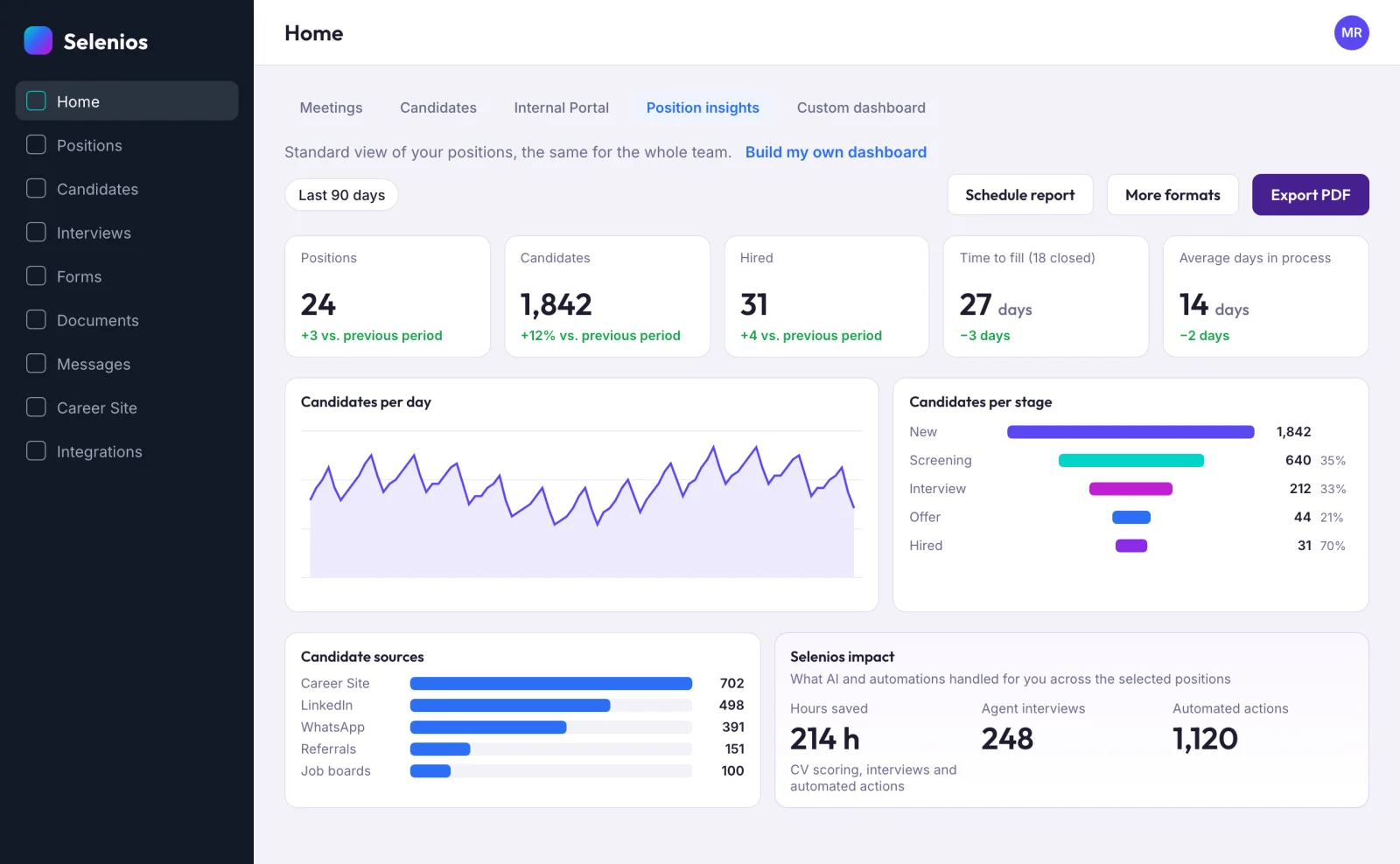
The Selenios impact section sums up what AI and automations handled for you: hours saved, agent interviews and automated actions, with the calculation assumption shown on screen. You can filter by position (status, area, tags, team, opening reason, recruiters) and by candidate (source, channel, status, rejection reason, dates). Restricted roles only see their own positions.
To take the data elsewhere, export a PDF with the real charts, a CSV, or an Excel workbook with one sheet per section plus the raw data. With Schedule report you set a name, frequency, day, time, time zone and period, and up to 20 recipients get an email with a PDF and a CSV, re-run on fresh data with the filters you saved.
Key Takeaway
Position insights covers what every recruiting team needs to measure, for every client. The Custom dashboard starts from that base and adapts it to your company.
How do you build a custom dashboard by talking to Seleni?
The Custom dashboard starts as a copy of Position insights, so you never start from a blank page. You edit it by chatting with Seleni, the Selenios AI assistant, and every change shows up in the preview first.
1. Create the dashboard
From the Custom dashboard tab, click "Create dashboard". Position insights stays available in its own tab, unchanged.
2. Ask for charts in plain language
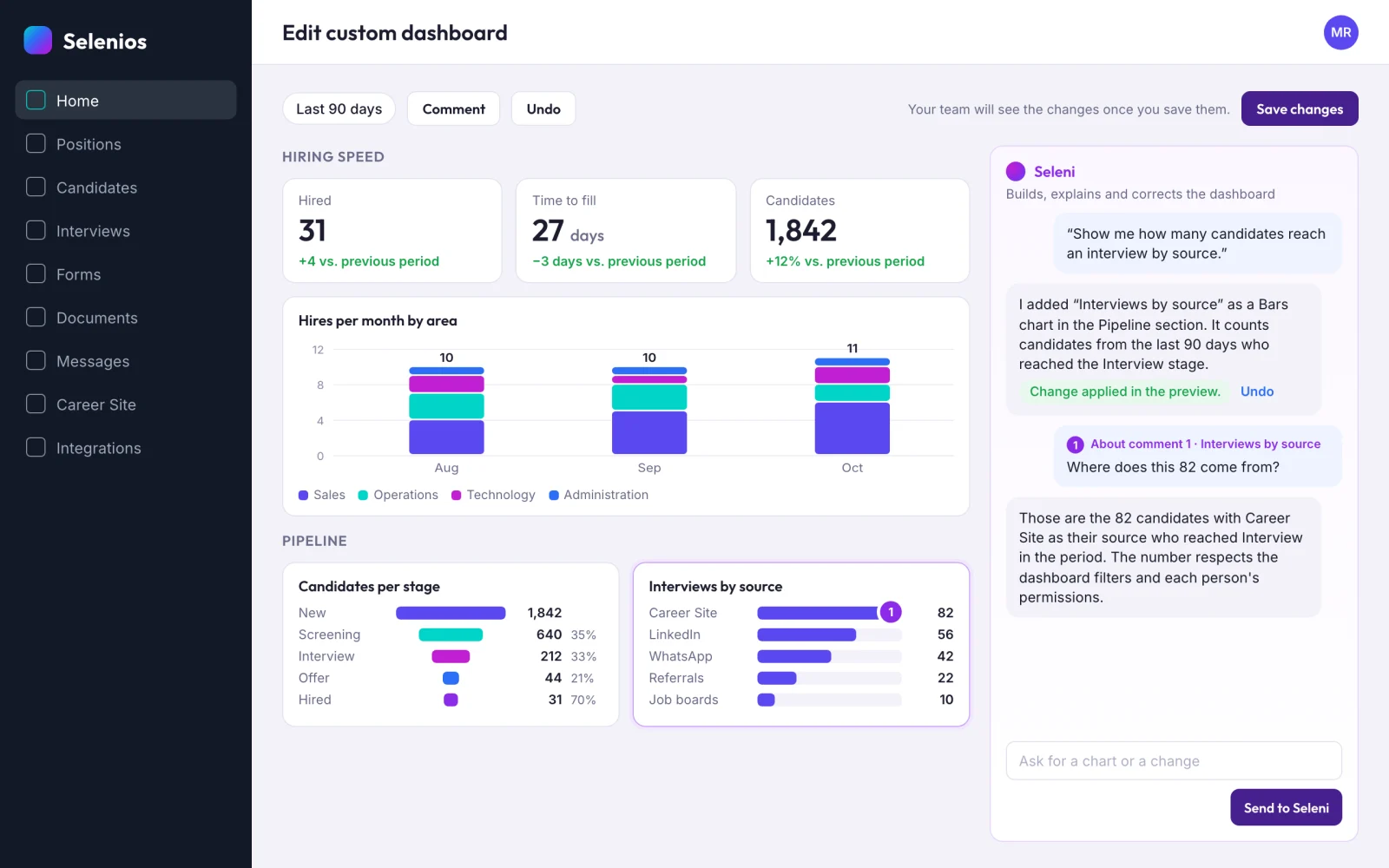
Tell Seleni what you want to see, the way you would say it in a meeting: "Show me how many candidates reach an interview by source" or "Show me hires for the Accounting area and the Client A tag only." Seleni picks the chart type, adds it and tells you which data it uses.
3. Comment on any number
With the "Comment" tool on, click a number or a bar and pin a note: "this should exclude interns" or "where does this 82 come from?" Seleni answers about that specific element.
4. Arrange and fine-tune
Drag charts to reorder them, set each card's width (One third, Half or Full) and add section titles. Each chart can carry fixed filters (area, status, recruiter, tag, location, position, opening reason, work mode or priority), and "Filters for readers" sets what viewers can filter themselves. Periods range from 30 to 365 days.
5. Save your changes
If something is off, use "Undo". Nothing reaches your team until you click "Save changes".
Why can you trust the numbers Seleni puts on the board?
Seleni never draws charts or computes numbers on its own. It picks from a closed catalog of chart types and binds them to metrics that Selenios computes. Every number is correct and respects the permissions of whoever is looking at the dashboard.
The catalog is grouped into Numbers, Comparison, Time, Pipeline, Parts of a whole, Distribution and relation, and Location. It includes Big number, Number with trend, Gauge, Bars, Columns with goal, Stacked bars, Before and after, Progress to goal, Table with bars, Line, Area, Activity calendar, Funnel, Flow, Donut and Map, among others.
The metrics cover time to fill (average, by area, by month and versus the previous period), open, closed and overdue positions, applications by source, status and day, hires versus target, stage funnel and flow, rejection reasons, stage durations, score distribution, team activity, candidate locations, and WhatsApp application outcomes with drop-off by step. To go deeper on reading a funnel, see our guide to recruitment funnel analytics.
Key Takeaway
Seleni decides how to show a figure, never what it is worth. The numbers always come from Selenios, with each person's permissions applied.
How do you set your company's definition of time to fill?
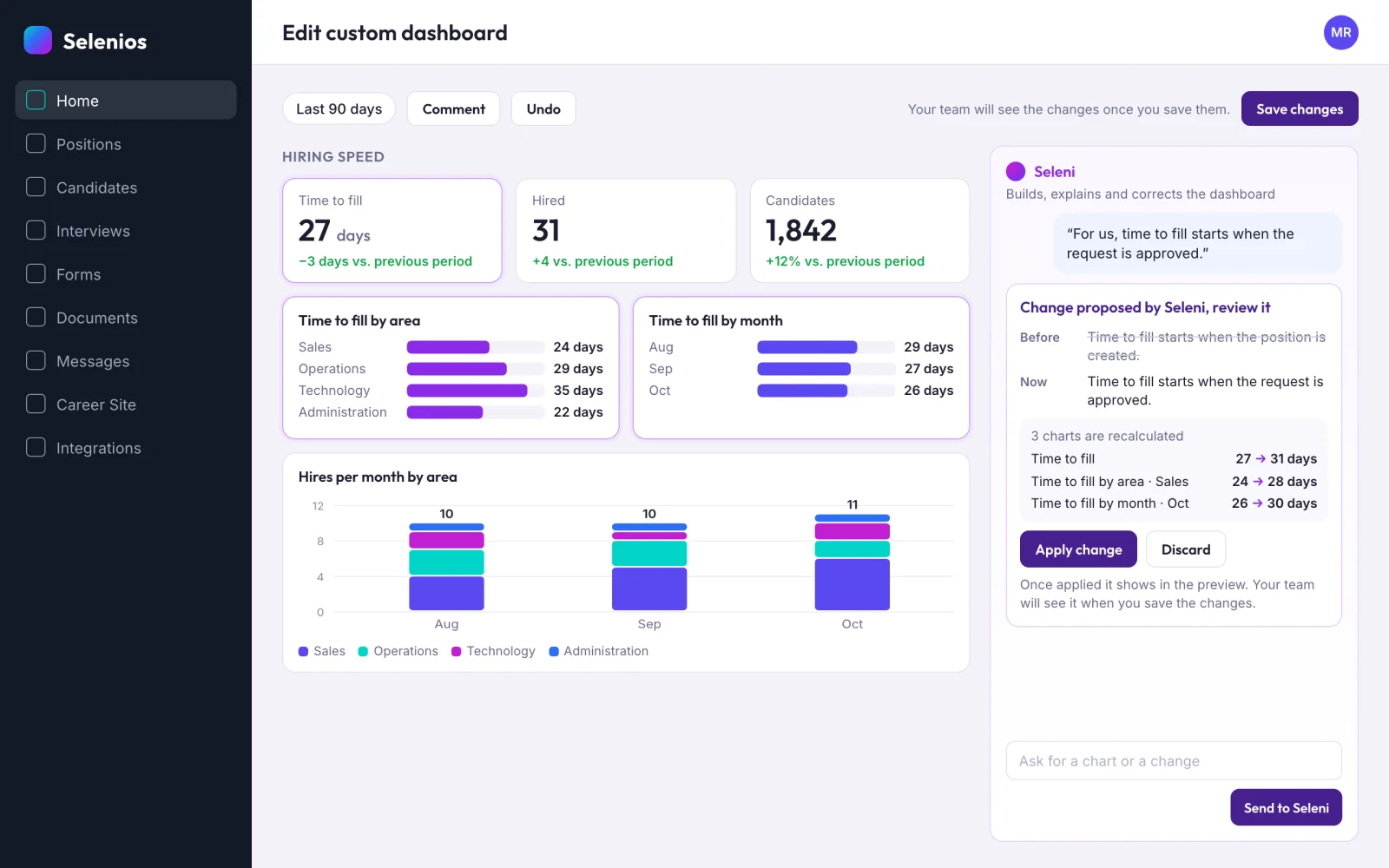
You change definitions by asking. Tell Seleni when time to fill starts (when the position is created or when the request is approved), when it ends (when the position closes or at the first hire), whether paused days count, and the deadline for a position, which defaults to 30 days.
Seleni replies with a "Change proposed by Seleni" card that shows the before and after and how each affected chart moves. Click "Apply change" and every chart that uses that definition is recalculated.
To decide which indicators to track in the first place, use our hiring quality KPIs guide.
Key Takeaway
The dashboard uses your company's definition of time to fill, and you see the impact of every change before you apply it.
How do you share the dashboard with your team and leadership?
From "Share board" you choose who sees it: "Whole company" or "Administrators only", which is handy while you are still building it. Editing requires its own permission, separate from viewing. Each company can have up to 20 dashboards.
You can also schedule an email Weekly, Every two weeks or Monthly to team members and external addresses. Recipients without a Selenios user get the report as a PDF. "Download report" gives you a PDF with the charts plus your career site logo and colors, or a CSV, and the option "Include how each figure is calculated" lets readers understand every number.
| Task | Manual | With Selenios |
|---|---|---|
| A new chart for leadership | Export, build the spreadsheet, redo it every week | Ask Seleni in one sentence |
| Time to fill definition | Every team calculates it differently | One company definition, applied to every chart |
| Trust in the numbers | Formulas nobody reviews | Metrics computed by Selenios, with each person's permissions |
| Report for people without a user | Attach files by hand | Scheduled email with a PDF |
To see how it fits with the rest of the platform, read our Multipost, Slack, Hunting and Insights update.
Who has access?
Position insights is available to every Selenios client. The Custom dashboard and scheduled email reports are enabled per company: ask your Selenios contact or book a demo.
Frequently asked questions
What is the Selenios Custom dashboard?+
It is your company's own recruiting dashboard, and it starts as a copy of Position insights. You edit it by chatting with Seleni, the Selenios AI assistant: you ask for a chart or a change in plain language and see it in the preview before saving it for your team.
Does Seleni calculate the numbers on the dashboard?+
No. Seleni picks a chart type from a closed catalog of 22 options and connects it to metrics that Selenios computes. That is why every number is correct and respects the permissions of whoever is viewing the dashboard.
Can I change how time to fill is calculated?+
Yes. You tell Seleni when it starts for your company (when the position is created or when the request is approved), when it ends (when the position closes or at the first hire) and whether paused days count. Seleni shows a before-and-after preview, and once you apply it every chart that uses that definition is recalculated.
How do I share the dashboard with people who do not use Selenios?+
From Share board you schedule a weekly, every-two-weeks or monthly email. You can add team members and external email addresses, and recipients without a Selenios user get the report as a PDF.
What is the difference between Position insights and the Custom dashboard?+
Position insights is the standard view, the same for the whole team and available to every client. The Custom dashboard is your company's version: you choose the charts, the definitions and the filters, and it is enabled per company.